Website Generator by B12:
Add the Website Generator by B12 app to a workflow step and create websites for your contacts on demand.
Overview
The Website Generator by B12 app enables teams to generate a website for any contact enrolled in a workflow, then save or send the website link via subsequent workflow steps. The app is designed to run inside HubSpot workflows and supports both Company and Contact-based workflows.
What the app does
When you add the app to a workflow step and specify data to share with it, your workflow sends the information to B12 and generates a website signup link for each enrolled contact or company.
Clicking the link and creating a B12 account enables you to view, edit, and publish the newly created site.
Features
Generated websites are hosted by B12 and include many features such as:
- Reliable hosting with unlimited storage and bandwidth
- Mobile-responsive design that's automatically optimized for all devices
- Easy customization with the intuitive B12 Editor — make updates yourself or work with B12 experts
- AI-powered assistance with AI Assist — describe updates or request strategic advice and see your website change with minimal pointing and clicking
- Built-in client engagement tools including online scheduling, payments, email marketing, and contact forms
Installing the App
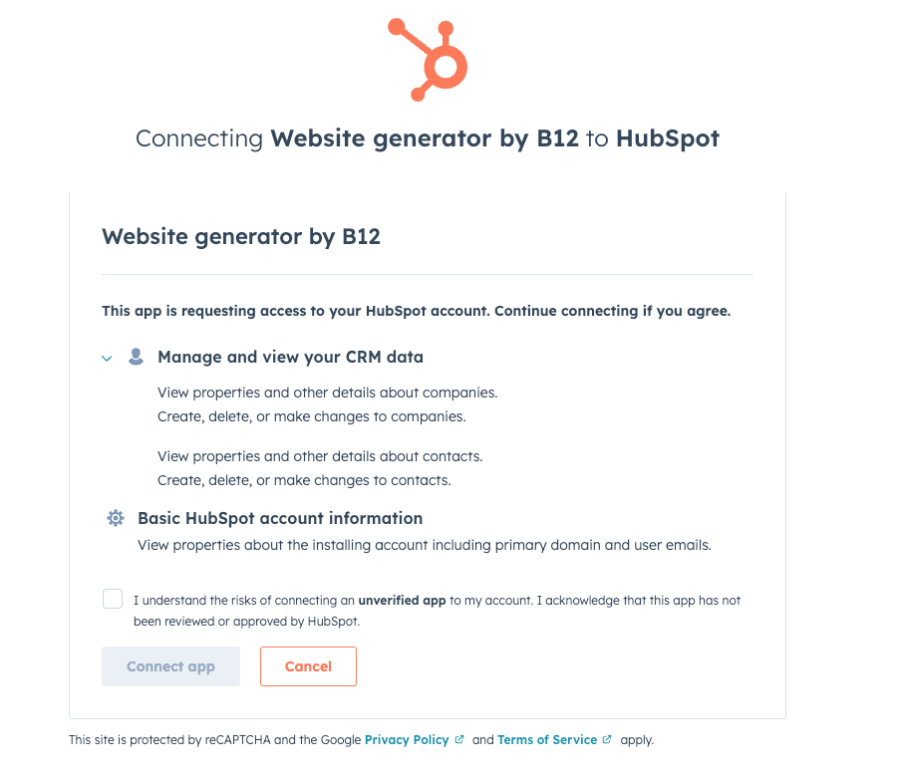
- Open the app listing in the HubSpot App Marketplace
- Click Install app
- Select the HubSpot account where you want to install the app
- Review the requested permissions
- Click Connect app to complete installation
Setting Up the Workflow
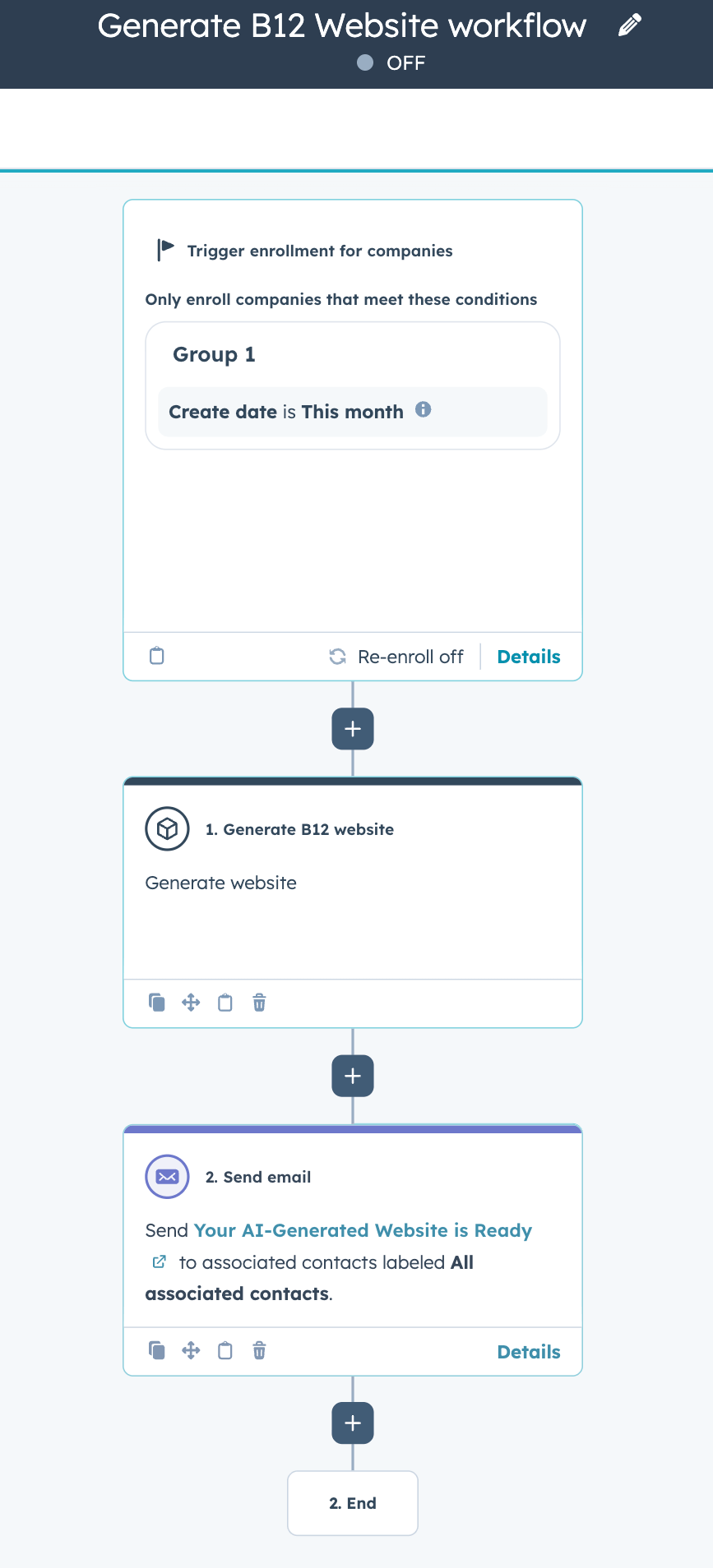
You can add a generate website workflow action to an existing or new HubSpot company or contact-based workflow.
Option 1: Add website generation to an existing workflow
Use this option if you already have a workflow and want to add website generation to it.
Steps
- Go to Automation → Workflows
- Open an existing Contact-based or Company-based workflow
- Click the + button to add action and select Generate B12 Website
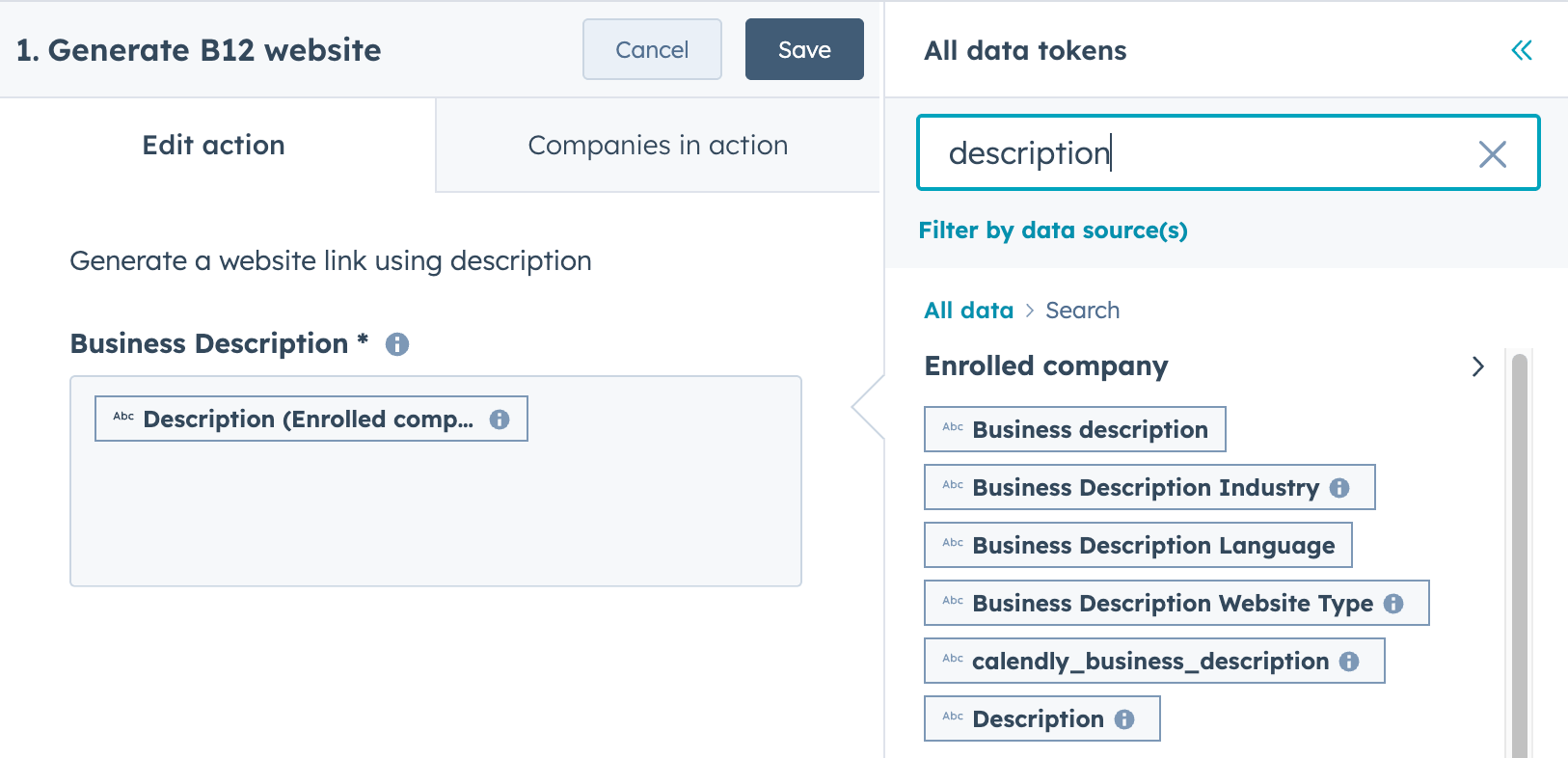
- Add the business description to send to the tool to generate the website link
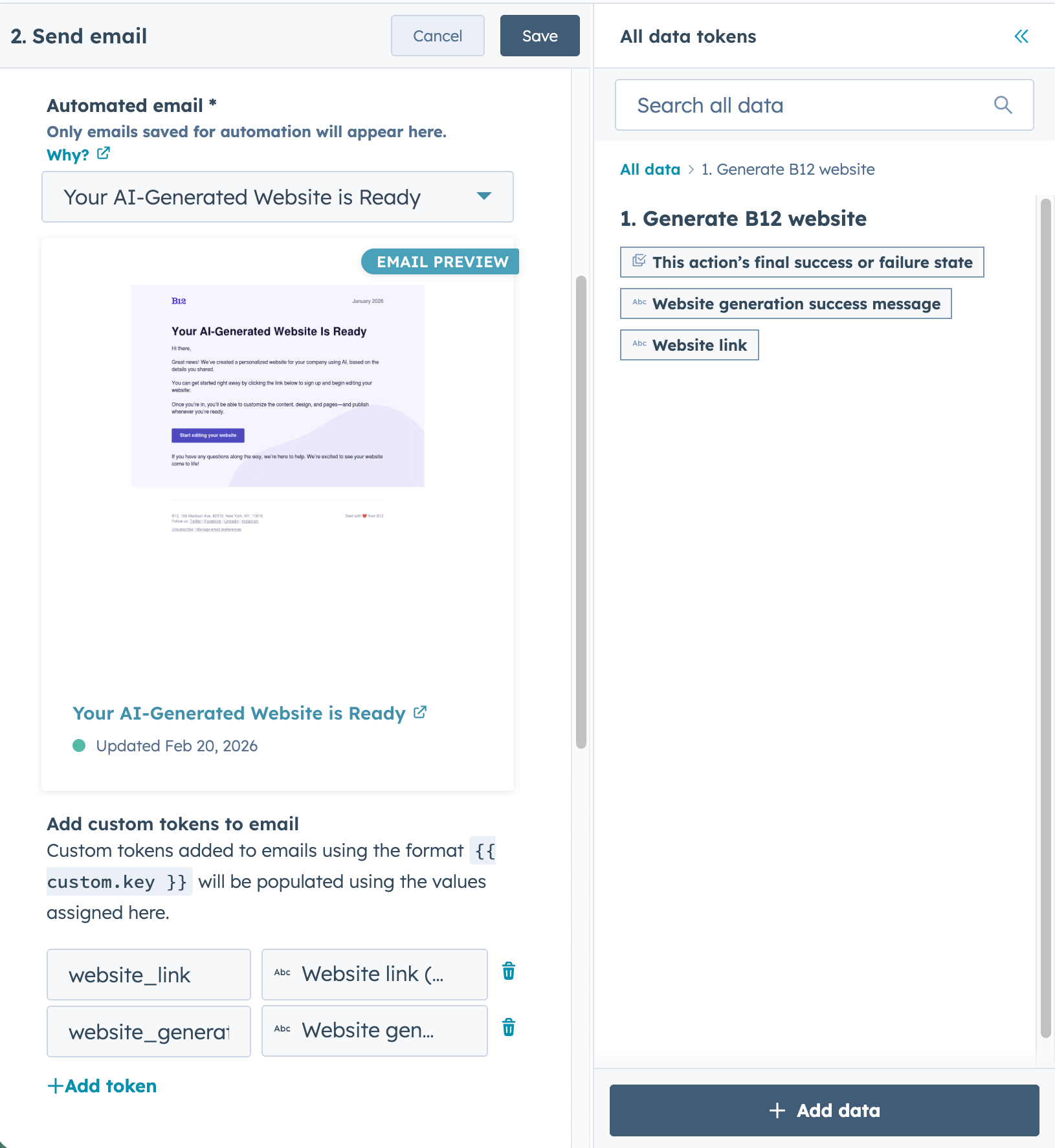
- Add subsequent workflow steps to process the website link by referencing the "Website link" and "Website generation success message" data tokens.
- Save the workflow action
Option 2: Create a new workflow to generate websites
Use this option if you want a dedicated workflow that generates website signup links.
Steps
- Go to Automation → Workflows
- Click Create workflow
-
Choose how you want to start:
- From scratch
- From template
- With AI
-
If starting from scratch, choose how the workflow will begin:
- Trigger manually
- When filter criteria is met
- On a schedule
- Or skip and choose eligible records
-
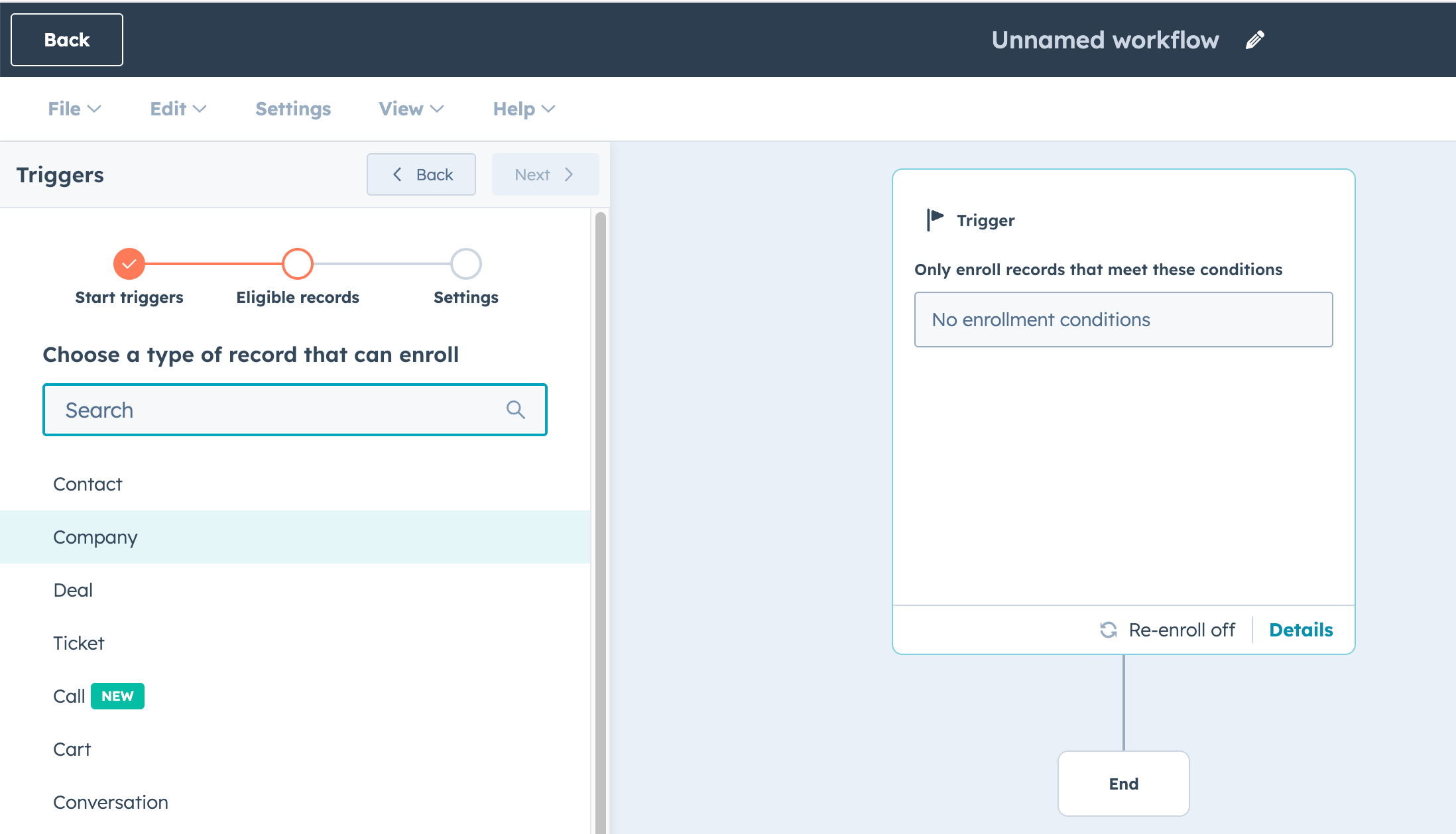
Select the record type that can enroll in the workflow:
- Contact, or
- Company
- Click the + button to add action and select Generate B12 Website
- Add the business description to send to the tool to generate the website link
- Add subsequent workflow steps to process the website link by referencing the "Website link" and "Website generation success message" data tokens.
- Save the workflow
Need help?
If you need help or have questions:

Create an AI website in seconds
Let AI do the heavy lifting by generating a full website based on your prompt.